
I still remember the day my phone battery died at 3 PM. I was in the middle of navigating an unfamiliar area, relying on Google Maps, and boom — 5% battery warning out of nowhere. That was the day I realized I had no idea what my phone was actually doing in the background. I’d been using Android for years and never once went deep into the settings. I just… left everything on default.
If that sounds familiar, keep reading. Because after that embarrassing situation, I spent a weekend going through every single setting on my Samsung Galaxy, and honestly, it changed how I use my phone completely. Some of these tweaks saved my battery life, some protected my privacy, and a couple of them genuinely made me wonder why Android doesn’t just set them this way from the start.
Here are 10 Android settings you should change right now, no tech degree required.
Note: I’m working off a Samsung Galaxy here. If you’re on a Pixel or another Android phone, the menu names might look a little different, but the settings are all there.
1. Turn Off Always-On Location for Every App
Open your Settings and follow this path: Privacy → Permission Manager → Location. Scroll through and check how many apps have ‘Allow all the time’ turned on. You’ll probably be surprised or maybe horrified.
I had a food delivery app tracking my location 24/7. Not just when I was ordering food.
Switch apps from “Allow all the time” to “Allow only while using the app.” For apps that have zero business knowing your location, like a flashlight or calculator, tap “Deny” without hesitation. This alone can noticeably improve battery life, and it stops companies from quietly building a profile of everywhere you go.
2. Disable Personalized Ads
Go to Settings, then Google, then Manage Your Google Account, then Data & Privacy, then Ad Settings.
Turn off “Ad personalization.”
I know, some people say “I’d rather see relevant ads.” Fair point. But what this setting really does is stop Google from using your search history, YouTube habits, and app activity to build a detailed profile of you. The ads don’t disappear; they just stop being unnaturally accurate. Honestly, creepy-accurate ads are more unsettling than random ones.
3. Set a Stronger Lock Screen Timeout
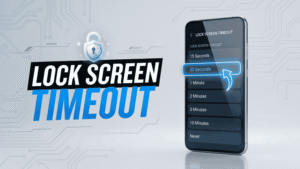
Most phones come with a screen timeout of 30 seconds or 1 minute before the screen goes dark, but here’s the thing: the lock screen delay is different. Some phones have a separate setting where, even after the screen turns off, the phone doesn’t actually lock for another 5 minutes.
Go to Settings, then Security, then Screen Lock Settings, then Lock After Screen Timeout, and set it to “Immediately.”
I found this out after leaving my phone on the table at work. The screen was off, looked locked, but anyone could have swiped up and gotten in for several minutes after. Fix it.
4. Limit Background Data for Apps You Don’t Use Much
Go to Settings, then Connections (or Network & Internet), then Data Usage, then look for “Mobile Data Usage.”
Tap on any app, and you’ll find an option called “Restrict Background Data.” Enable this for apps you don’t check constantly, such as games, shopping apps, and news apps.
Background data is a silent battery and data drainer. One of my old news apps was refreshing itself every 15 minutes, even when I hadn’t opened it in a week. Restricting it doesn’t stop the app from working; it just means it only updates when you actually open it.
5. Review Which Apps Can Send Notifications
Go to Settings, then Notifications, then App Notifications.
You’ll see a full list of apps and how many notifications they’ve sent recently. Sort by “Most recent” and prepare to be annoyed at yourself.
I was getting notifications from apps I had completely forgotten I installed. A furniture shopping app. A random game from 2022. A weather app I replaced months ago.
Turn off notifications for anything that isn’t genuinely useful. Your mental load will thank you. Your brain starts expecting interruptions, and before long, you feel on edge even when your phone is silent. This is one small thing that genuinely changed how peaceful my mornings feel.
6. Enable Two-Factor Authentication for Your Google Account
Go to Settings, then Google, then Manage Your Google Account, then Security, then 2-Step Verification.
Turn it on and use an authenticator app (like Google Authenticator or Authy) instead of SMS if possible.
This is one people skip because it feels like extra work. But your Google account has your emails, contacts, photos, payment info, and possibly your passwords. If someone gets into it, the damage can be enormous. SMS-based 2FA is okay, but app-based is harder to intercept. Takes 30 seconds to set up and protects years of your data.
7. Stop Apps from Installing Other Apps
Go to Settings, then Apps, then scroll through and look for “Install Unknown Apps.”
Any app that has permission to install other apps and doesn’t genuinely need it should have that permission turned off immediately.
I found that an older file manager app I’d been using had this permission on. I don’t even know when it got turned on. Shady apps sometimes use this to silently install adware or worse. Unless you’re side-loading APKs on purpose, nothing needs this permission.
8. Use a Private DNS
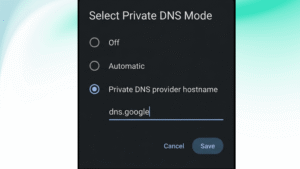
Open Settings and follow this path: Connections (or Network & Internet) → More Connection Settings → Private DNS
Select ‘Private DNS provider hostname’ and type in one.one.one.one (that’s Cloudflare’s DNS) or dns.google.
DNS is basically the phone book your phone uses to find websites. Most people don’t realize their internet provider has a clear view of every website they visit by default, and switching to private browsing doesn’t change that at all. Switching to a private DNS stops that, often speeds up browsing slightly, and can help block some malicious sites.
I made this change about two years ago and never looked back. It takes 20 seconds.
9. Calibrate Your Battery Usage with Adaptive Battery
Open Settings, go to Battery, and make sure Adaptive Battery is switched on.
But here’s the thing, adaptive battery works better over time. It learns your habits. The mistake I made was toggling it on and off, thinking it wasn’t working. Give it some time — a week or two at minimum, and let it figure out your routine. My screen-on time noticeably improved after a month of leaving it on without messing with it.
While you’re there, also check “Battery Usage” and see what’s at the top. If an app you rarely use is burning through battery in the background, force stop it or uninstall it.
10. Your Camera and Microphone Don’t Belong to Every App on Your Phone
Go to Settings, then Privacy, then Permission Manager, then Camera (and then repeat for Microphone).
Look at which apps have access. Be honest with yourself, does that random alarm clock app need your camera? Does a to-do list app need your microphone?
I found five apps on my phone with microphone access that had zero reason to have it. A calculator. A unit converter. A wallpaper app. Revoke anything that seems unnecessary. If the app actually needs it for a feature, it’ll ask again when the time comes.
A Mistake I Made That You Should Avoid
When I first went through all these settings, I got carried away and restricted background data and notifications for everything, including my banking app. Missed a fraud alert for two days because the notification never came through. Don’t let excitement turn into overreach. Be selective. Apps like banking, health, and messaging usually need their permissions and notifications intact.
One More Thing Worth Doing
After going through all 10 of these, take five minutes to go through your installed apps and delete anything you haven’t touched in three months. Every app you keep installed is a potential security risk, a background battery drain, and another thing taking up space in your digital life.
Android gives you an incredible amount of control over your phone, way more than most people realize. The default settings are built for convenience and for business interests, not necessarily for your privacy or battery life. That’s not a conspiracy, it’s just how it works.
If you managed to find the Settings app, you’re already qualified for everything on this list. Block out 30 minutes this weekend and go through them one by one. Your battery will last longer, your phone will feel snappier, your private data will actually be more private, and weirdly, you’ll feel a little more in control of your day.
Your phone should work for you. These settings help make sure it does.