
I remember the exact moment I wanted to throw my iPhone 11 out the window.
I was trying to pull up a boarding pass at the airport; the gate was closing, and my phone was just sitting there, spinning. Every tap felt like shouting into a void. People were staring. I was sweating. The phone? Totally unbothered.
That day, I spent three hours in the departure lounge going through every setting, every app, every thread on Reddit I could find. And what I discovered changed how I use my phone completely.
If your iPhone has been crawling lately, acting laggy, freezing mid-scroll, or just feeling nothing like it used to, you’re not imagining things. And no, you don’t need to immediately upgrade to the latest model. Most of the time, there’s a real reason your phone slowed down, and most of those reasons are fixable.
Let’s get into it.
The Most Common Reason Nobody Talks About: Full Storage
Here’s the one that got me. I had about 400 MB of free storage left out of 64 GB. I thought that was fine. It is not fine.
iPhones need breathing room to function properly. iOS uses that free space as a kind of working area for temporary files, app caches, and system processes. When you’re nearly full, the phone has nowhere to work and starts lagging on almost everything.
Go to Settings, then General, then iPhone Storage. If you’re under 1 GB free, that’s almost certainly causing your slowdowns.
What to do about it:
Start with Photos. This is usually the biggest culprit. Enable iCloud Photos and set your iPhone to “Optimise iPhone Storage.” Your full-resolution photos stay in iCloud, and your phone keeps smaller versions locally. I freed up 12 GB in one afternoon doing this.
After that, check the storage breakdown on that same screen. You’ll see which apps are eating the most space. I had a podcast app sitting at 4 GB of downloaded episodes I hadn’t listened to in months. Gone.
Also, text message attachments pile up silently over time. Open Settings, tap Messages, then find the Keep Messages option and switch it from Forever to either 30 Days or 1 Year. Old attachments will quietly clean themselves out without touching your actual conversations.
Background App Refresh Is Quietly Draining Your Speed
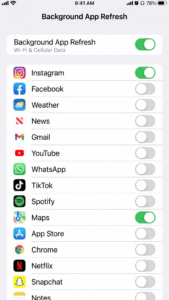
Every app on your phone has the ability to refresh itself in the background, even when you’re not using it. That means Instagram is loading your feed, weather apps are pulling data, news apps are syncing, all at the same time, all the time.
On older phones, especially, this creates a constant low-level slowdown that you might not even notice in one specific place. Everything just feels slightly sluggish. Animations stutter. Apps take too long to open.
To fix it: Settings, General, Background App Refresh. You can turn this off entirely or go through app by app and disable it for the ones that don’t actually need to update in real time. I kept it on for Maps and turned it off for about 15 other apps. The difference was noticeable within a day.
iOS Updates: The Double-Edged Sword
Here’s something I learned the hard way. A major iOS update, like going from iOS 16 to iOS 17, often feels slow right after you install it. The system is doing a lot of indexing and background work in the first 24 to 48 hours. Spotlight is reindexing your content. Photos is re-processing your library. Your phone will feel worse before it feels better.
So if you just updated and things are sluggish, give it two days before panicking.
On the other hand, if you’ve been putting off updates, that can also cause problems. Older iOS versions don’t always play nicely with newer apps, and some apps actively slow down or crash on outdated system software.
The rule I follow now: update, then leave the phone plugged in overnight and let it do its thing. By morning, it’s usually running smoothly.
Too Many Apps Running in the Background? Actually, Not a Huge Deal Anymore
This one surprises people. There’s a myth that you should constantly swipe up to close all your open apps because they’re draining resources. Apple’s engineers designed iOS to manage this automatically and efficiently. Constantly force-closing apps can actually make things slower because the phone has to reload them fully from scratch every time you open them, instead of just resuming a paused state.
That said, if one specific app is misbehaving, crashes your phone, or seems to be causing battery drain, then yes, force-close that one. But making it a habit to close everything? That’s not helping.
Where it does help is if an app has frozen or is clearly stuck. Swipe it away, reopen it fresh. That specific scenario works perfectly.
The Restart You Keep Skipping
I know this sounds too simple. But when did you last restart your iPhone?
Not just lock the screen. Not just charge it. A full restart: hold the buttons, slide to power off, wait ten seconds, turn back on.
A lot of people go weeks or even months without doing this. Meanwhile, iOS accumulates temporary files, small memory leaks in apps build up, and things just get heavier and heavier. A restart clears all of that out. It’s like clearing a desk that’s been gathering junk for a month.
I now restart my phone every Sunday morning. Takes 45 seconds. Makes a real difference.
Reduce Motion and Transparency: The Hidden Performance Settings
This one is legitimately underused. Apple’s interface has beautiful animations, parallax effects on the home screen, and smooth transitions everywhere. But all of that takes processing power.
On older iPhones, like an iPhone X or iPhone 8, these visual effects can eat into performance noticeably. On newer phones like the iPhone 14 or 15, the impact is smaller but still real.
Go to Settings, Accessibility, Motion, and turn on “Reduce Motion.” Then go back to Accessibility, Display and Text Size, and turn on “Reduce Transparency.”
The interface looks slightly different, flatter, less animated. But it runs faster. I tried this on my old iPhone 8, and it felt like someone had given the phone a small upgrade. Seriously noticeable.
Your Battery Might Be the Real Problem
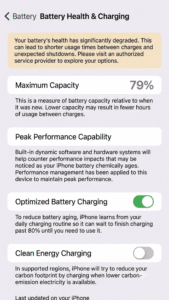
Apple introduced battery health management a few years ago. The basic idea is this: when your battery health drops below a certain level, iOS automatically slows the phone down to prevent unexpected shutdowns. It’s called performance management.
Check yours by going to Settings, Battery, Battery Health, and Charging. Anything below 80%, and you might be experiencing this throttling.
If your battery health is at 79% or lower, getting a battery replacement is honestly one of the best investments you can make. Apple charges around $89 for this on most models. Third-party shops often do it cheaper. After getting my iPhone 11 battery replaced last year, the phone felt brand new for a fraction of the cost of upgrading.
Apps That Have Gone Rogue
Sometimes one specific app is the problem, and it takes a while to figure out which one.
A good way to narrow it down: go to Settings, Battery, and scroll down to see battery usage by app over the last 10 days. If you see an app consuming 30 or 40 percent of your battery when you barely use it, something is wrong with that app. It might have a bug, a runaway background process, or a sync issue.
Delete it and reinstall it fresh. That usually fixes it. If not, check if there’s an update available for it. Developers push bug fixes regularly, and sometimes a slow app is just a broken version waiting for a patch.
Resetting Settings Without Losing Your Data
If you’ve tried everything and the phone still feels off, there’s an option called “Reset All Settings” that a lot of people don’t know about. It sounds scary, but it does not delete your photos, apps, or messages.
What it does reset: your Wi-Fi passwords, Bluetooth pairings, wallpaper, notification settings, privacy settings, and various system preferences. Everything goes back to default.
Open Settings, tap General, scroll all the way down to Transfer or Reset iPhone, tap Reset, then choose Reset All Settings from the list that appears.
After this, you’ll need to reconnect to Wi-Fi and re-pair Bluetooth devices, but it clears out a lot of potential configuration issues that can cause slowdowns over time. I used this as a last resort on a phone that was mysteriously slow, and it worked when nothing else did.
When It Really Is Time to Move On
Sometimes, especially with phones that are five or six years old, the hardware just isn’t keeping up with modern apps. Apps get bigger and more demanding every year. An iPhone 7 running the latest version of TikTok or Instagram is fighting an uphill battle.
But before assuming that’s the case, run through the steps above first. You might be surprised what a bit of storage cleanup, a battery replacement, and a few tweaked settings can do.
I kept my iPhone 11 running well for four years before upgrading. That extra time paid for itself.
The phone you have right now is probably capable of a lot more than it’s showing you. Most of the time, it just needs someone to actually look at what is going on under the hood.