
I remember the exact moment I decided enough was enough.
I was playing PUBG Mobile, final circle, two squads left. My hands were sweaty, I had a clean shot, and then a lag spike. By the time my screen caught up, I was already dead. My teammate (who never lets anything go) sent me a voice message laughing for a full 30 seconds.
That was the day I went down a rabbit hole trying to figure out why a phone that cost me nearly $400 was struggling to run a mobile game smoothly. What I found surprised me, because most of the fixes weren’t about buying new hardware; they were about undoing things I was doing wrong.
So if your phone heats up during gaming, drops frames like it’s scared of them, or just feels sluggish compared to what it used to be, keep reading. I’ve tested most of this stuff myself.
The Real Reason Your Phone Struggles During Gaming
Before jumping into fixes, it helps to understand what’s actually happening under the hood.
When you launch a game, your phone’s processor and GPU kick into high gear. At the same time, background apps are refreshing, your battery management system is trying to preserve power, and if your storage is almost full, your phone is constantly juggling data. All of that happening at once is like trying to cook a five-course meal in a tiny kitchen with a broken stove.
The fix isn’t always “buy more RAM.” Sometimes it’s just clearing the kitchen.
Step 1: Clear the Clutter Before You Even Launch the Game
This sounds obvious, but most people skip it.
Before a gaming session, go to your recent apps and close everything you’re not using. I know Android and iOS both claim they “manage memory automatically,” and technically they do, but in practice, having 15 apps open in the background still taxes your system, especially if some of those apps are actively syncing data (looking at you, Google Photos and Spotify).
On Android, you can also go to Settings > Developer Options > Background Process Limit and set it to a lower number during gaming. This tells the system to be more aggressive about shutting down idle apps.
Don’t have Developer Options visible? Go to Settings > About Phone, tap on Build Number seven times. Yes, really. It unlocks the developer settings.
On iPhone, there’s no equivalent, but force-closing heavy apps like Facebook, Instagram, and Maps before gaming makes a noticeable difference.
While you’re in your phone settings, there are also some hidden smartphone tricks worth knowing that can improve your overall experience.
Step 2: Enable Game Mode (If Your Phone Has One)
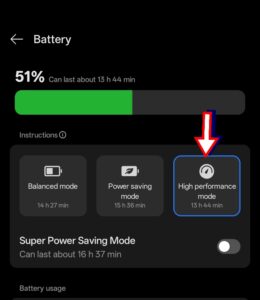
A lot of people don’t realize their phone already has a built-in gaming mode; they just never turn it on.
Samsung has Game Booster, which you can access through the Game Launcher app. It lets you lock brightness, block notifications, and prioritize CPU/GPU performance for the active game.
OnePlus has HyperBoost. Xiaomi and Redmi phones have Game Turbo. ASUS ROG phones have an entire dedicated Armoury Crate system with hardware-level controls.
Even if your phone doesn’t have a branded feature, check under Settings > Battery or Settings > Performance. Many mid-range phones have a “High Performance” mode buried in there.
On iPhones, this doesn’t exist natively, but keeping your phone plugged in during gaming (when possible) prevents iOS from throttling performance to protect battery life.
Step 3: Sort Out Your Storage
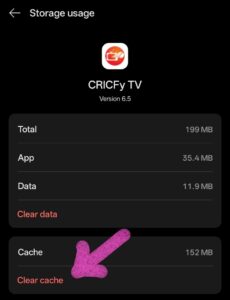
Here’s something I learned the embarrassing way: I had my phone at about 94% storage capacity for months. Thought it was fine. Then I read that when internal storage drops below 10-15% free space, Android in particular slows down significantly because it needs room to write temporary files.
I deleted about 6GB of photos I’d already backed up to Google Photos, uninstalled three games I hadn’t touched in a year, and cleared app caches. My phone felt noticeably faster within hours, not just in games, but everywhere.
To clear app caches on Android: Settings > Apps > [App Name] > Storage > Clear Cache. Don’t clear the data unless you want to log back in; just clear the cache.
On iPhone, you can’t clear individual app caches the same way, but offloading unused apps (Settings > General > iPhone Storage > Offload Unused Apps) achieves a similar effect.
A good rule of thumb: keep at least 15% of your storage free at all times if you game regularly.
Step 4: Watch the Temperature — Seriously
Heat is the enemy of performance. When your phone gets hot, it throttles itself to prevent damage. This is called thermal throttling, and it’s responsible for a huge chunk of mid-game performance drops.
I used to play with my phone in a thick, rubberized case. Looked great, but the performance was killed. Once I started gaming without the case, especially during long sessions, my frame rates were noticeably more stable.
Other things that helped:
- Don’t game while charging if you can avoid it. Charging generates heat, and gaming generates heat — doing both at once turns your phone into a tiny radiator.
- Keep your phone out of direct sunlight. Sounds basic, but I’ve watched people try to game at the beach and then complain about lag.
- If you game for hours, a small clip-on phone cooler actually works. The Black Shark FunCooler and the Razer Phone Cooler Chroma are popular options. I tried a cheap generic one from Amazon for about $12, and it did cut my temperatures by around 5-7°C during long sessions.
Step 5: Adjust In-Game Graphics Settings
I know you want the game to look good. But there’s a balance between visual fidelity and smooth gameplay, and most competitive mobile gamers actually prefer smoother over prettier.
In BGMI and PUBG Mobile, I run Smooth graphics + Extreme frame rate over HD graphics + High frame rate. The game looks slightly less detailed, but 60fps smooth is dramatically better than 40fps stuttery.
In Call of Duty Mobile, dropping shadows to Low and disabling Anti-Aliasing while keeping textures at High gives you a good middle ground.
For Genshin Impact (the most demanding mobile game I play regularly), I actually set it to 30fps and medium quality on my mid-range phone rather than fighting for 60fps and getting thermal throttling after 20 minutes. Steady 30 beats, inconsistent 60 every time.
Check each game’s individual graphics settings; most have frame rate caps you can adjust, and some have specific “performance mode” presets.
Step 6: Keep Your Phone Updated (But Time It Right)
Software updates are worth installing, but timing matters. Both Android and iOS regularly release patches that improve how your phone manages processing power and memory, so ignoring updates for months means you’re likely leaving real performance gains behind.
That said, I never install a major update the day it drops; I give it a week or two first, let other people discover the bugs before you do. Let others find the bugs first. I’ve been burned by day-one updates that introduced stuttering or battery drain, and it’s not fun.
Mistakes I Made (So You Don’t Have To)
Using “RAM cleaner” apps. These are almost universally useless, and some are actively harmful. Android is very good at managing RAM itself. Killing background apps constantly can slow things down because they have to reload fully every time.
Overclocking without cooling. I tried a root-based overclocking tweak once. The phone got hot in three minutes, and performance was worse, not better, due to thermal throttling.
Ignoring the battery health. If your battery is degraded (below 80% capacity), your phone will struggle to deliver peak power during GPU-intensive moments. On iPhone, you can check this under Settings > Battery > Battery Health. On Android, it varies by manufacturer — Samsung shows it in the Battery settings after a diagnostic.
Keeping notifications on during gaming. Every notification is a tiny CPU spike and a frame drop waiting to happen. Enable Do Not Disturb before you start playing.
What Actually Made the Biggest Difference for Me
Honestly? It wasn’t one big thing. It was the combination:
- Freeing up storage space
- Removing my case during long sessions
- Enabling Game Booster
- Dropping graphics settings to prioritize frame rate
- Closing background apps before launching a game
My phone didn’t magically become a gaming powerhouse. But it went from frustratingly inconsistent to reliably playable, and that’s all I really needed.
If you’re on a budget phone and hitting a hard ceiling, some of this will only get you so far. But if you’ve got a decent mid-range or flagship and it’s underperforming, there’s almost always room to improve before you start thinking about an upgrade.
Try the steps above in order. Most of them cost nothing except five minutes of your time. Start with storage and background apps; those two alone might be all you need.
And if someone laughs at you for dying in a final circle, blame the lag. You were totally going to win otherwise.