
My cousin called me last month, frustrated, saying his iPhone storage was full again, even after deleting half his photos. I walked him through one quick setting change, and he freed up 4GB in under two minutes. He went silent for a second, then said, “Why has nobody told me this before?”
That moment reminded me how many people use their smartphones every single day without ever discovering what these little devices are truly capable of. We’re all guilty of it. You buy a phone, learn the basics, and settle in. Meanwhile, there are features buried two or three menus deep that genuinely change how you use the thing.
So here are eight tricks, some I stumbled onto by accident, others I found while troubleshooting problems for people, that will actually make your phone more useful.
1. Your Back Tap Is a Hidden Button (iPhone)
I discovered this one completely by accident. I was tapping the back of my phone to fix a case that felt loose when suddenly my flashlight turned on. Turns out, Apple added a feature called Back Tap that lets you assign actions to a double or triple tap on the back of your phone.
To set it up: go to Settings → Accessibility → Touch → Back Tap. You can assign things like taking a screenshot, opening the camera, triggering a shortcut, or even controlling your scroll position.
I personally have double-tap set to screenshot and triple-tap set to open the camera. It sounds small, but when you’re trying to take a quick screenshot without fumbling for buttons, it’s a lifesaver. My partner now uses triple-tap to trigger a Siri Shortcut that sends her location to me. Genuinely useful.
2. The Hidden Clipboard on Android
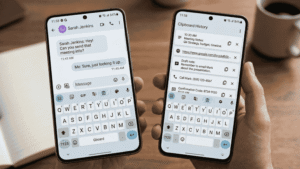
For the longest time, I used to retype things I’d copied earlier because I thought they were gone. Copied a link, copied something else, and the first thing vanished forever. Nope, turns out Samsung and many Android phones have a clipboard history.
On Samsung devices, open any text field (like a message or notes app), tap the keyboard icon at the top of the keyboard, and look for the clipboard icon. On Gboard (the default Google keyboard), tap the clipboard icon in the toolbar row.
You’ll find everything you’ve copied recently, all sitting there waiting. I once recovered a full paragraph I’d written in WhatsApp, accidentally cleared, and thought I lost forever. Took me ten seconds to find it in the clipboard history.
One heads-up: sensitive stuff like passwords or card numbers can end up there, too, so it’s worth clearing it now and then.
3. Turn Your Keyboard Into a Trackpad
This one breaks people’s brains a little when they first see it.
On iPhone, press and hold the spacebar on the keyboard. The whole keyboard goes blank, and suddenly your finger controls a cursor like a trackpad, letting you position it precisely anywhere in your text.
On Android with Gboard, press and hold the spacebar. The keyboard keys will fade out, and your finger becomes a cursor controller, sliding left or right to move precisely through your text. If it doesn’t activate, go to Settings inside Gboard and make sure “Gesture cursor control” is turned on.
Before I knew this, I’d spend 20 seconds tapping, missing, tapping again, trying to position my cursor between two specific letters. Now it takes half a second. This is especially useful when editing emails or long messages where precision actually matters.
4. Schedule Your Do Not Disturb (And Actually Sleep Better)
This sounds obvious until you realise most people have never actually set it up properly. They either have DND on all the time, or they forget to turn it on and get woken up at 2 AM by a group chat.
On iPhone: Settings → Focus → Do Not Disturb → Add Schedule. You can set it to turn on automatically at 11 PM and off at 7 AM, allow calls from specific people (like family), and even let through repeat callers in case of emergencies.
On Android, the path varies by manufacturer. On Samsung: Settings → Modes and Routines → Do Not Disturb. On stock Android or Pixel: Settings → Sound & Vibration → Do Not Disturb → Schedules. On OnePlus: Settings → Notifications & Status Bar → Do Not Disturb. All of them allow you to set start and end times and whitelist specific contacts.
The feature I didn’t use for way too long: allowing “starred contacts” to bypass DND. Your family gets through at 2 AM if it matters. The Saturday night plans thread does not.
5. Google Lens Is More Powerful Than You Think
Most people know Google Lens can identify plants and dogs. What most people don’t know is that it can:
- Copy text from physical objects — menus, handwritten notes, whiteboards. Point your camera, tap the text, and copy it straight to your clipboard.
- Translate text in real time — hold your phone up to a sign in another language and watch it change.
- Search for a product — see a lamp in a coffee shop you like? Lens can identify it and often find where to buy it.
- Solve math problems — point it at a handwritten equation.
I used it last year in a small restaurant in Istanbul where the menu was only in Turkish. Held my phone up, tapped translate, and read the whole thing without downloading a separate app or typing anything. It’s built into Google Photos, the Google app, and Google Assistant.
On iPhone, you access it through the Google app or Google Photos. Android users often have it baked into their camera app already.
6. The Emergency SOS Feature That Most People Ignore
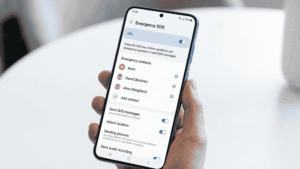
I used to dismiss this as something I’d “never need.” Then a friend got into a minor car accident late at night and couldn’t speak clearly enough to explain her location to the operator.
On iPhone: rapidly press the side button five times (or press and hold the side + volume button), and it calls emergency services, shares your location, and alerts your emergency contacts automatically.
On Android, the setup differs by brand. On Pixel: Settings → Emergency SOS → enable and set the number of button presses. On Samsung: Settings → Advanced Features → Emergency SOS. On OnePlus: Settings → Safety & Emergency → Emergency SOS. All versions let you automatically call emergency services and alert your chosen contacts.
Take five minutes right now and set up your emergency contacts and Medical ID (on iPhone, it’s under Health → Medical ID). First responders and emergency services can access this from your lock screen. I finally did this after my friend’s accident, and it took less than three minutes.
7. Use Your Phone’s Volume Buttons as a Camera Shutter
This one sounds too simple to be a “trick”, but the number of blurry selfies I took before figuring this out is embarrassing.
On both iPhone and Android, when the camera is open, pressing either volume button takes a photo. This is huge for two reasons:
First, it’s easier to hold the phone steady when you’re pressing a button on the side rather than reaching across to tap the screen. Your hand stays natural, your grip stays firm, and the phone doesn’t wobble at the moment the shot is taken.
Second, you can use your earphones as a remote shutter. Plug in wired earphones, open the camera, and press the volume button on the cable. The phone takes the photo without you touching it at all. But here’s what most people don’t realise: this works with Bluetooth earphones too. Connect your AirPods or any Bluetooth headset, open the camera, and press the volume button on the earpiece. Same result, no wire needed, from several feet away.
There’s more hiding in that volume button. On iPhone, holding it down doesn’t just take one photo; it shoots a burst, capturing dozens of frames per second. Perfect for kids, pets, sports, or anything that refuses to stay still. You pick the best frame afterwards. On Android, open your Camera app, tap the Settings icon inside the app, and look for an option called “Volume buttons function” or “Press volume key to.” Set it to Burst Shot. On Samsung specifically, go to Camera Settings → Shooting Methods → Volume Keys to take pictures.
And it’s not just photos. On iPhone, if you switch to video mode, the volume button starts and stops recording. Your grip stays firm, your phone stays still, and the shot actually comes out sharp.
I used the earphone trick for a solo trip photo in Japan. Set the phone on a ledge, walked into frame, pressed the volume button on my earphones from my pocket. No awkward selfie angle, no ten-second timer where you’re standing there waiting and looking slightly panicked. The kind of photo that looks effortless, because for once, it actually was.
8. Free Up Storage Without Deleting Anything (iPhone)
Remember my cousin — the one who called me frustrated, ready to delete half his photo library? This is exactly what I walked him through. No photos deleted, no apps manually hunted down. Just one menu. Go to Settings → General → iPhone Storage, then scroll down and look for the “Offload Unused Apps” option. Turn it on.
What this does is automatically remove apps you haven’t used in a while, but keeps all their data. So if you enable it and your phone removes a game you haven’t touched in eight months, all your progress is saved in iCloud. The moment you reinstall the app, everything is back.
The second thing: scroll through that storage list and tap on any app. For most apps, you’ll see an option to “Offload App” manually, which does the same thing, removes the app but keeps the data.
The third thing almost nobody knows: scroll all the way to the bottom and check your Messages settings. You can set attachments to be automatically deleted after 30 days or one year instead of forever. Old photos, voice memos, and videos in text threads add up faster than you’d think.
I helped three different people free up significant storage using just this menu, without deleting a single photo.
The Mistake Everyone Makes
The biggest mistake is assuming you already know your phone. Both Apple and Google push out features constantly, iOS updates, Android updates, and they rarely announce everything. Half the features I’ve mentioned were added in updates that people installed without reading the release notes.
Every few months, spend ten minutes going through your Settings app like a tourist. You’ll almost always find something you didn’t know was there. I found the Back Tap feature more than a year after it was released, just by scrolling through Accessibility settings out of boredom.
Your phone is genuinely more capable than you’re using it. The features are already there, they’re just waiting for you to find them.
Every few months, something new surprises me, and I’ve been using smartphones for fifteen years. If you’ve stumbled onto something that belongs on this list, drop it in the comments — I genuinely want to know.