
A few months ago, my cousin grabbed my phone to check the time and casually watched me type my app lock PIN. She didn’t mean to memorize it, but she did anyway. That’s the thing about PINs and patterns, anyone standing close enough for two seconds can pick them up without even trying. That night I went looking for something better and ended up installing Picture AppLock by CFY Apps, and I haven’t looked back since.
I want to be upfront that I’m not affiliated with the developer in any way. I’m just someone who got tired of shoulder surfing being a real threat every single day. What follows is what actually happened when I switched, including the parts where I messed up.
The Problem With Regular App Locks
Traditional app locks all work the same way. You set a PIN, a pattern, or a password, and anyone watching your thumb move can copy it. My old lock even showed a faint outline of the pattern grid, which made it easier for someone to guess.
I tested this myself. I asked my roommate to watch me unlock my apps three times in a row. By the third try, he had my pattern memorized completely.
A lock that can be watched and copied is not really a lock at all, it is just a delay.
What Picture AppLock Does Differently
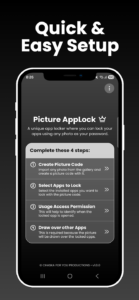
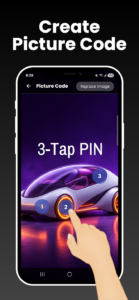
Instead of a PIN or pattern, Picture AppLock lets you choose any photo from your gallery and tap three secret spots on it in a specific order. Nobody watching you unlock your phone has any idea those taps mean anything. It just looks like you’re glancing at a picture.
The first time I set this up, I picked a photo of my dog sitting in the garden. I tapped his nose, his left paw, and a random leaf in the background. To anyone peeking over my shoulder, it looked like I was just admiring a cute photo.
This is the feature that made me switch in the first place, and it’s still the reason I recommend it to friends.
My First Attempt Was a Mess
I’ll admit my first invisible picture code was a disaster. I picked a photo of a crowded beach and tried to tap three specific grains of sand, nearly impossible to repeat accurately.
I locked myself out within an hour. Lesson learned, pick a photo with a few clear, distinct objects, not a busy background with fifty similar looking spots.
Locking Any App You Actually Care About
Picture AppLock isn’t limited to just a couple of default apps. I locked WhatsApp, Instagram, my gallery, and my banking app, all separately, and each one uses the same invisible tap system.
This mattered to me because my niece has a habit of grabbing phones to watch videos, and she somehow always ends up in someone’s gallery. Locking the gallery alone solved half my privacy worries.
I also locked my banking app since that felt like the most sensitive thing on my phone. Knowing a random photo tap stands between anyone and my bank balance is actually more reassuring than a four digit PIN ever was.
A Small Mistake Worth Mentioning
When I first locked WhatsApp, I forgot that locking it also locks it from notification previews acting differently on some phones. I panicked for a minute thinking messages had stopped coming in.
Turns out everything was fine, I just needed to unlock the app to see full previews again depending on my phone settings. If this happens to you, don’t assume something is broken, check your notification settings first.
Touch Radius and Why Precision Matters
One setting I didn’t expect to care about is the customizable touch radius. Standard mode gives you some wiggle room if your finger lands a little off, while high precision mode tightens things up so only an exact tap counts.
I started on standard mode because I have slightly clumsy fingers, especially in the morning before coffee. It let me unlock apps even when my taps were a little off target, which saved me from getting locked out constantly.
After about a week, my muscle memory had locked in, so I bumped it up to high precision and haven’t had a problem since. It feels more secure since it narrows the margin for anyone trying to randomly guess the right area.
My tip here is simple. Start on standard mode for the first week, then bump it up to high precision once your muscle memory kicks in.
Auto Lock Timer, and How I Almost Got Caught Out
The auto-lock timer determines how quickly an app relocks itself after you leave it. Picture AppLock gives you options like immediate lock, a 30 second grace period, or a longer 2 minute window.
My banking app is on immediate lock because the idea of walking away from my phone for thirty seconds and leaving that open makes me uncomfortable. For apps like Instagram, I use the 30 second option, so I’m not constantly re entering my picture code while switching between apps.
Here’s my funny moment. My gallery was set to the 2 minute grace period, and one afternoon a delivery showed up right as I was browsing through photos. The conversation at the door ran longer than expected, closer to three minutes. When I came back, the gallery had locked itself again, and I had completely forgotten which photo I’d chosen for the code that week.
I stood there tapping random photos in my gallery folder like a confused detective trying to remember my own secret. It was funny in hindsight, but it also taught me to stick with one memorable photo instead of rotating them too often.
Biometric Recovery Saved Me More Than Once
Forgetting your invisible tap sequence sounds like it would be a nightmare, and honestly it can be if there’s no backup option. Picture AppLock includes biometric recovery using fingerprint or face unlock, so you’re never fully locked out.
I’ve used this twice, once when I genuinely forgot my tap order after switching photos too many times, and once when my finger was wet after washing dishes and kept messing up my exact taps. Face unlock got me back in within seconds both times.
This feature quietly removes the biggest fear people have about picture based locks, that one bad memory day means losing access to your own apps.
Uninstall Protection Stopped My Nephew Cold
My nephew loves messing with my phone settings when he visits, and one day he tried to uninstall Picture AppLock thinking it would “fix” something he broke in a game. The uninstall protection stopped him immediately and asked for verification.
This feature matters more than people realize. Without it, anyone with a few seconds of access could simply delete the app and remove your entire lock setup without ever cracking your code.
I didn’t think I’d need this feature when I first read about it, but that one moment with my nephew changed my mind completely.
Everything Stays on Your Phone, Nothing Goes to a Server
This was the deciding factor for me. Picture AppLock keeps your chosen photo, your tap coordinates, and your settings entirely on your device. Nothing gets uploaded anywhere, no account creation, no cloud syncing of your secret taps.
I actually checked my phone’s data usage after a week of heavy use to see if anything unusual was happening in the background. Nothing stood out, which lined up with what the app claims about staying fully offline for its core lock function.
For something protecting your banking app and private photos, knowing that data isn’t leaving your phone matters more than any flashy feature could.
Common Mistakes People Make With Picture AppLock
Picking a busy photo with too many similar looking spots is the number one mistake, mine included. Choose something with a few clear, distinct areas instead.
Setting every app to the longest auto lock timer defeats the purpose of having a lock at all. Save the longer grace periods for low risk apps only.
Not testing biometric recovery ahead of time is another one. Set it up early, before you actually need it in a panic.
Ignoring the touch radius setting is also common. If you keep getting locked out, switch to standard mode instead of assuming the app is broken.
Setting It Up Yourself
If you want to try this out, download Picture AppLock from Google Play, choose a clear photo with distinct spots, pick your three taps carefully, and set your auto lock timer based on how sensitive each app is. Turn on biometric recovery right away so you’re covered from day one.
My old PIN lock is gone from my phone now, and I do not miss it at all. Every time someone glances at my screen while I unlock an app and has absolutely no idea what just happened, that feels like the whole point.