
Last month my dad called me, panicking because his banking app kept showing an error message. He tried explaining what he saw, but that description does not help much when you are trying to fix something remotely. That’s when I remembered a friend mentioning ScreenStream, a free Android app, so I downloaded it right there to see if it could actually save me a trip to his house.
I did not expect much. Most free screen-sharing tools I had tried before required some kind of account, a login, or a weird browser extension. ScreenStream needed none of that, and I was actually a little suspicious at first.
What Happened When I Opened It
I opened the app and there was no sign up screen at all. Just a big start button sitting in the middle of a plain interface. I tapped it, granted the screen recording permission Android asks for, and within seconds I had a link on my screen.
I opened that link on my laptop browser, and there it was, my dad’s phone screen appearing live in front of me. No cable, no extension, nothing installed on my laptop. I actually said “wait, that’s it?” out loud to nobody in my room.
The One Tap Sharing Feature
This is the part that impressed me the most. You literally tap once, and it generates a shareable web address instantly. Anyone with that link, opened in Chrome, Firefox, or even Safari, can see your screen without installing anything.
I tested this across three different devices in my house. Old Samsung, a Redmi, and my main daily driver phone. All three generated the link within two or three seconds, no lag on this step at all.
Three Modes and When Each One Made Sense
ScreenStream is not just one simple tool, it actually gives you three different modes, and each one is built for a different situation. I tried all three over the following week, mostly because I got curious after fixing my dad’s app problem.
Global WebRTC Mode
This mode lets someone view your screen from anywhere in the world, not just your WiFi network. It uses encrypted connections, and you can set a password so random people can’t jump in and watch your screen.
I used this mode again a few days later to help a coworker who works from a different city. I sent him the link, he typed the password, and within seconds he was watching my screen live while I walked him through a spreadsheet issue. This mode is perfect for remote support, online teaching, or any situation where you and the other person aren’t on the same network.
Local MJPEG Mode
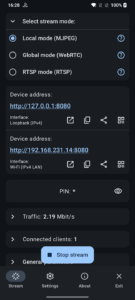
This one only works when both devices are on the same WiFi network, but it works completely offline from any external internet dependency. I tested this at home with WiFi turned off from the router’s internet connection, just local network active, and it still worked fine.
This mode felt perfect for classroom setups or small office demos where everyone is already connected to the same WiFi. I also used it once during a family game night, sharing my phone screen on our smart TV browser so everyone could watch me play instead of crowding around my tiny screen. My cousin joked that I was “livestreaming to an audience of four people eating chips,” and honestly, that’s exactly what it felt like.
RTSP Mode
This mode is clearly built for people who know their way around streaming tools. It works with VLC and OBS, which means you can pull the video feed into more advanced setups.
I opened VLC on my laptop, entered the RTSP address ScreenStream gave me, and my phone screen popped up inside VLC within a few seconds. This mode makes sense for people recording tutorials, building live demos, or anyone who wants more control using dedicated broadcasting software.
Setting Up Each Mode, The Simple Way
For Global WebRTC mode, you open the app, switch to that mode in settings, set a password if you want one, hit start, then share the generated link. For Local MJPEG mode, both devices connect to the same WiFi, you hit start, and share the local address shown inside the app. For RTSP mode, you copy the RTSP address ScreenStream displays and paste it directly into VLC or OBS as a network stream.
None of these steps felt complicated, even for someone like my dad who still asks me how to update apps.
Battery and Data Usage From My Own Testing
I ran WebRTC mode continuously for about forty minutes during a call with my coworker. My battery dropped around eleven percent, which felt reasonable considering the screen stays on the whole time anyway.
Local MJPEG mode used noticeably less battery since it avoids sending data over mobile networks. Data usage on WebRTC mode used a little over one hundred megabytes during that same forty minute session, so I wouldn’t recommend using it on a limited mobile plan for long sessions.
Performance Across Different Phones
On my main phone, a mid range device from last year, everything ran smoothly with barely any delay. On the older Samsung, there was a slight delay of about one second, which is still fine for presentations or casual sharing.
The Redmi handled it surprisingly well too, and it performed closer to my main phone than I expected from a budget device. None of these devices struggled to keep the app running in the background while other apps stayed open.
Why I Trust This App
Before recommending anything to friends or family, I always check who built it and how open the project is. ScreenStream is created by Dmytro Kryvoruchko, and the entire app is 100% open source under the MIT License.
That means anyone can review the actual code behind it, which gave me more confidence recommending it to my dad for something as sensitive as banking app troubleshooting. Something is reassuring about using a tool where nothing is hidden behind closed doors.
After using ScreenStream for helping my dad, guiding a coworker remotely, and randomly sharing a game with my cousins, I keep coming back to how quickly it just works without demanding much from me. It is rare to find a free tool that does not ask for accounts, doesn’t push ads inside the app, and still delivers exactly what it promises the moment you open it.